Gateway Configuration Guide
1. App Setup & Device Connection
Use the Macnman Maya mobile application to configure the gateway.
Steps:
- Install the app from Play Store
- Login using your Gmail ID
- Scan for nearby devices
- Connect via:
- Device selection, or
- QR code scan
What this does:
Establishes initial communication between your phone and the gateway for configuration.
2. Device Overview & Basic Controls
Once connected, the home screen allows:
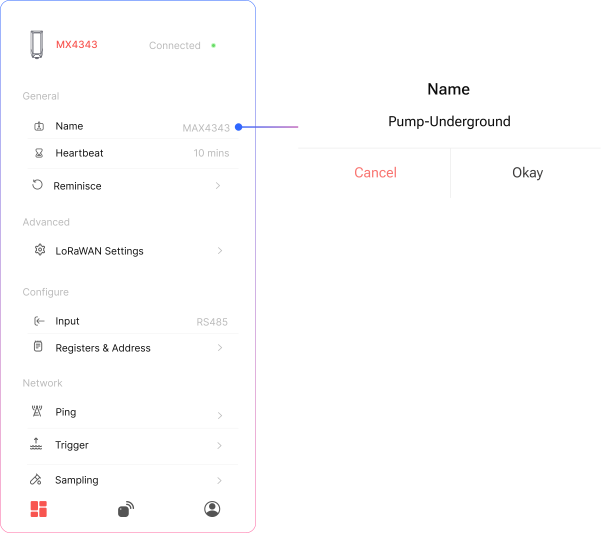
- Device Naming → Assign a unique identifier for easier management
- Heartbeat Setting → Defines how frequently the device communicates
- Data Read → View live device data
Why it matters:
Helps in organizing multiple devices and controlling communication intervals.
3. Device Naming
To rename:
- Open Name field
- Enter new name
- Save
Best Practice:
Use structured naming (e.g., Site-Floor-DeviceType) for scalability.
4. LoRa Communication Settings
Go to LoRa Settings and verify parameters.
All settings must match: Sensor ↔ Gateway
Required Parameters
-
Class → Must match
-
Frequency (IN865) → Standard band in India
-
Spreading Factor (SF)
- Lower SF → Faster transmission, shorter range
- Higher SF → Slower transmission, longer range
-
Channel → Must be identical
-
Slave ID → Unique per device
-
Encryption Key → Must match for secure communication
Purpose:
Ensures stable and secure wireless communication.
How to change LoRa Class? :
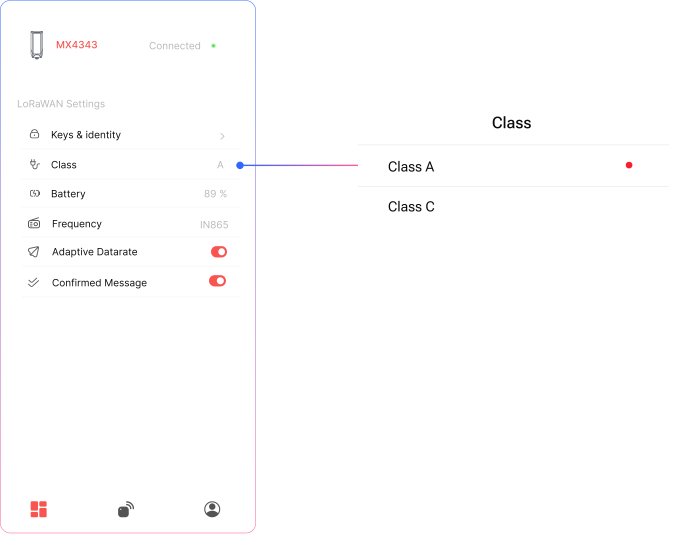
LoRa Class
Select the appropriate LoRa Class based on your device’s power source and application needs:
-
Class A
Recommended for battery-powered devices. It offers the lowest power consumption and is suitable for sensors that transmit data occasionally. -
Class C
Designed for mains-powered devices. It keeps the receiver always on, allowing near-instant downlink communication from the server.
Choosing the correct class helps optimize battery life and network responsiveness based on your deployment.
Controller are available in the Class C mode only
LoRa Frequency
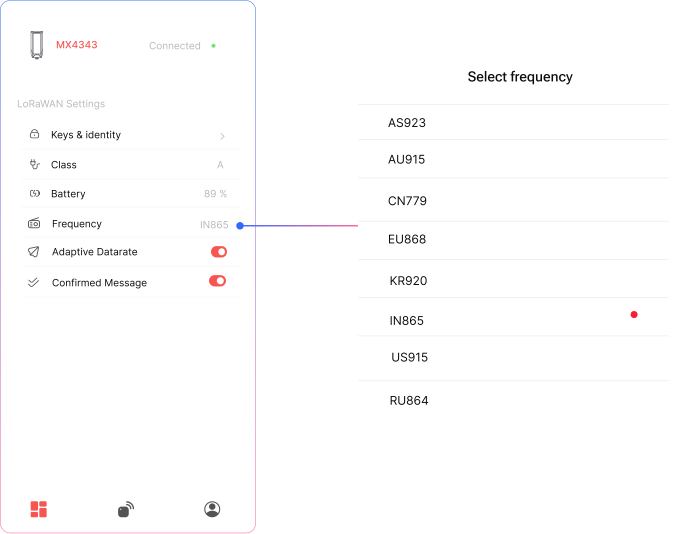
Select the appropriate LoRa frequency band based on your deployment region and local regulatory standards.
- Example
IN865(India),IN868(Europe),US915(North America)
LoRa SF
How to LoRa Spreading Factors ? :
Inside LoRa settings, navigate to SF (Spreading Factor) and toggle up and down as per requirement.

LoRa Channels
How to setup LoRa channels ? :
Inside LoRa settings, navigate to channels and type in channel number as per requirement.

Slave ID
How to setup device slave ID ? :
Inside LoRa settings, navigate to Slave ID and type in Slave ID number as per requirement.

Encryption Key
How to setup device Encryption Key ? :
Inside LoRa settings, navigate to Encryption Key and type in Encryption Key number as per requirement.

5. Network Capacity
- Supports up to 20 devices per gateway
- Recommended with 5-minute uplink interval
Note:
Higher frequency of data transmission may reduce capacity.
6. RS485 Communication Setup
Used when connecting external sensors via RS485.
Navigate to RS485 Settings
Parameters
-
Baud Rate
Must match sensor specification (e.g., 9600, 19200) -
Parity
Options:- None
- Even
- Odd
What this does:
Ensures correct serial communication and accurate data acquisition.