Terminal Connections in MacSet LX1
External Power Supply
MacSet also supports direct external power input (12–24 V DC):
- Ensure wiring is done as per MacSet and the sensor manufacturer’s power and polarity specifications.
- This is ideal for installations where continuous power is available and high-frequency data logging is required.
Terminal Connections
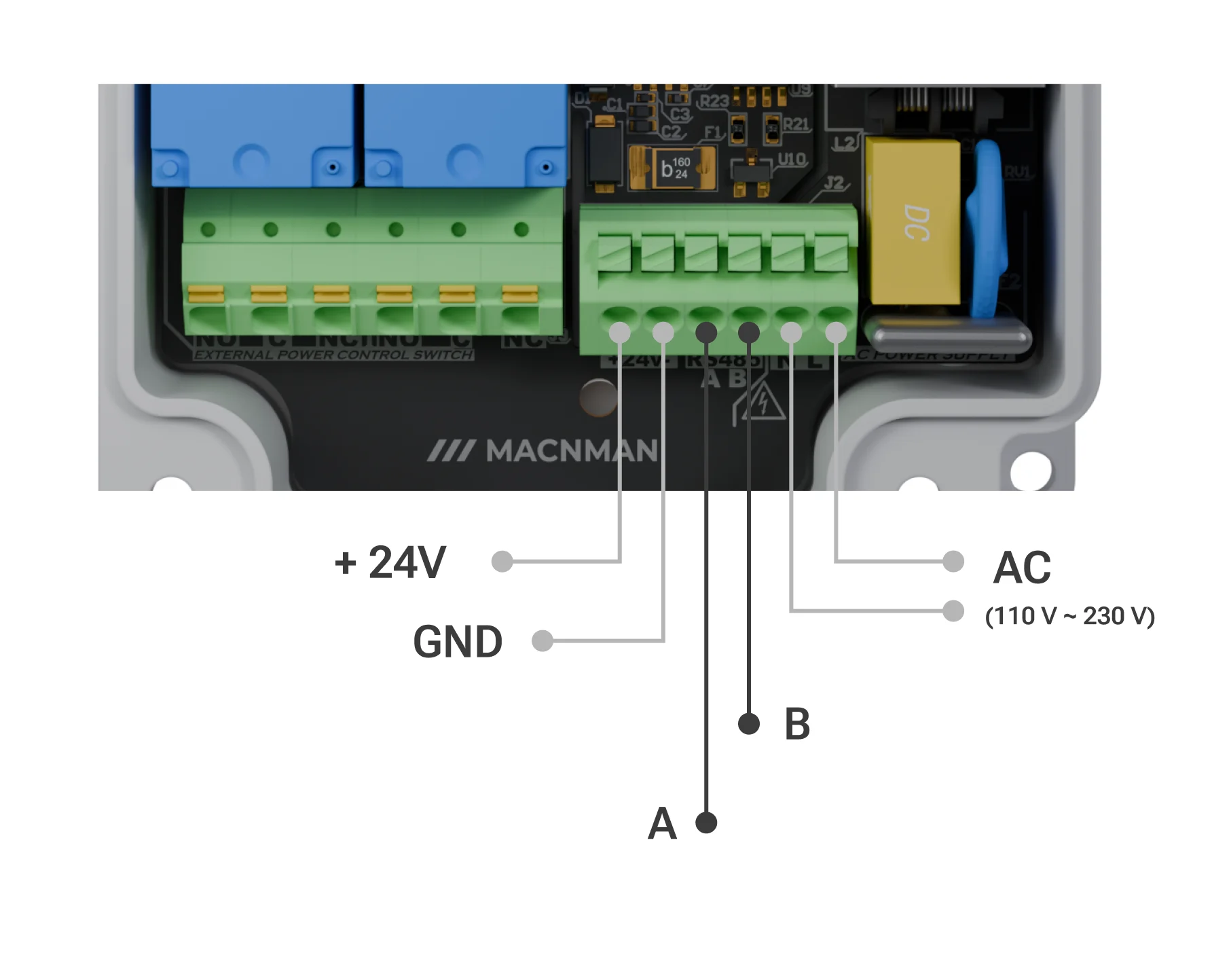
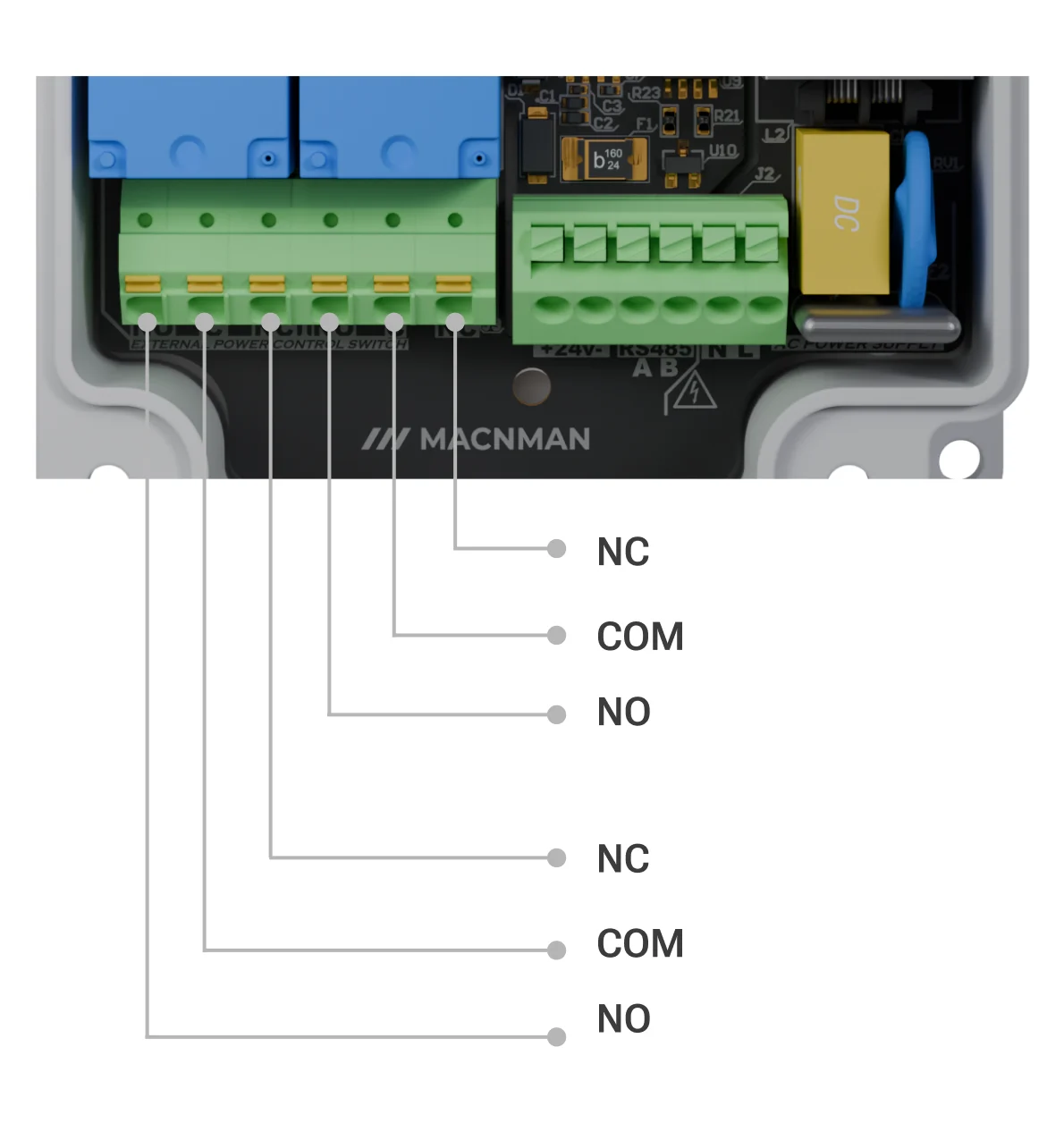
Procedure for Connecting External Power
MacSet can also be powered through a direct external DC source within a 12–24 V range. Ensure proper connection using a compatible terminal or jack, and always refer to both MacSet and sensor manufacturer specifications for safe operation.
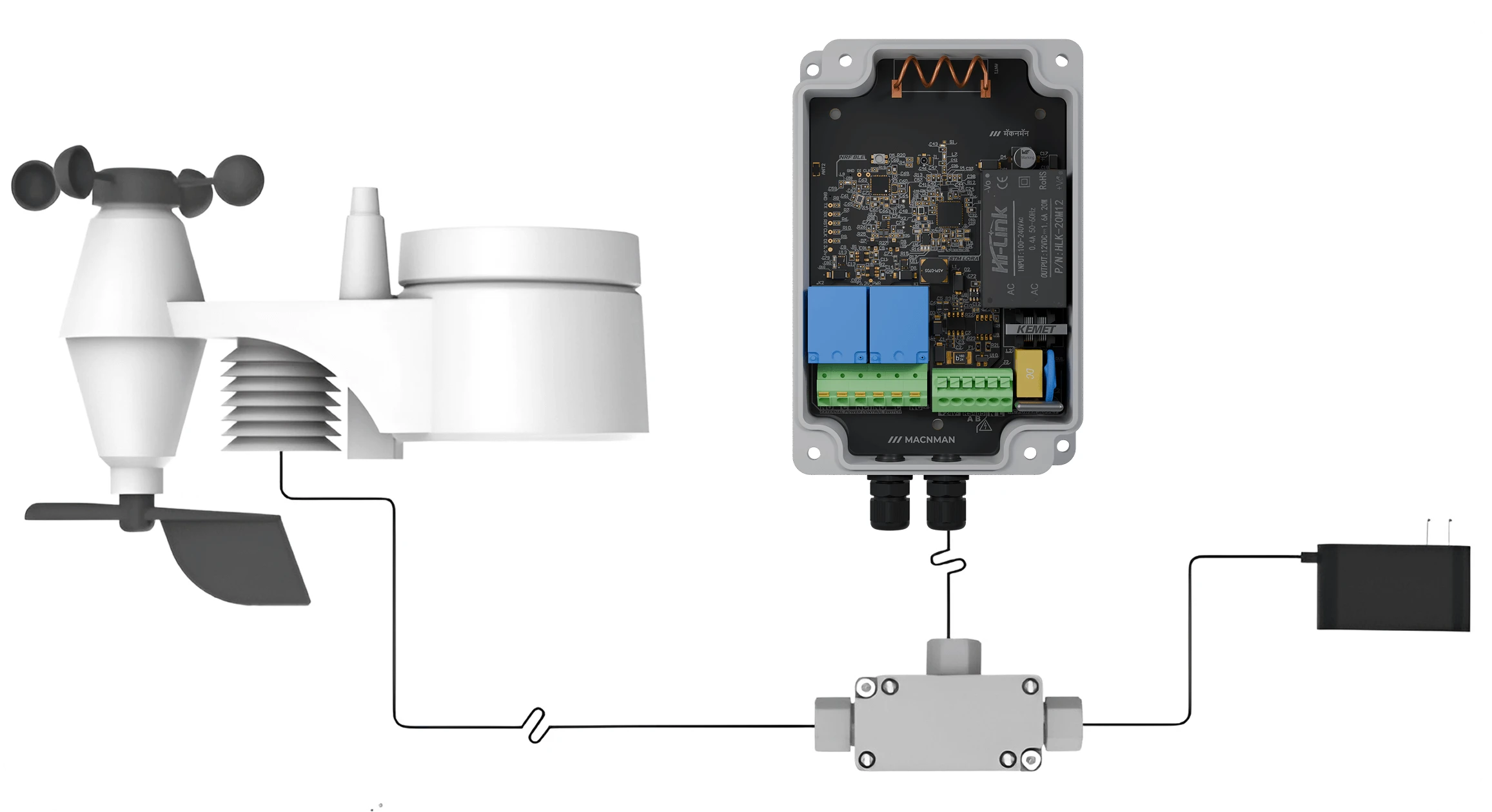
Connecting External Sensors
-
Check Sensor Specifications
Ensure compatibility with MacSet's input requirements. -
Power Off the device
Turn off MacSet before making any connections. -
Attach Sensor Cables
Connect cables to the appropriate inputs on MacSet, following the sensor manufacturer’s pin configuration and power on device. -
Configure via Maya App
Power on MacSet and configure it using the Maya app to adjust settings as per your needs.
Connecting External Power Supply
-
Verify Power Supply
Confirm the power supply matches MacSet's 12-24 V requirement. Turn off both MacSet and the power source before connecting. -
Connect Power Cable , Insure safety
Turn off MacSet before making any connections.
Led Status
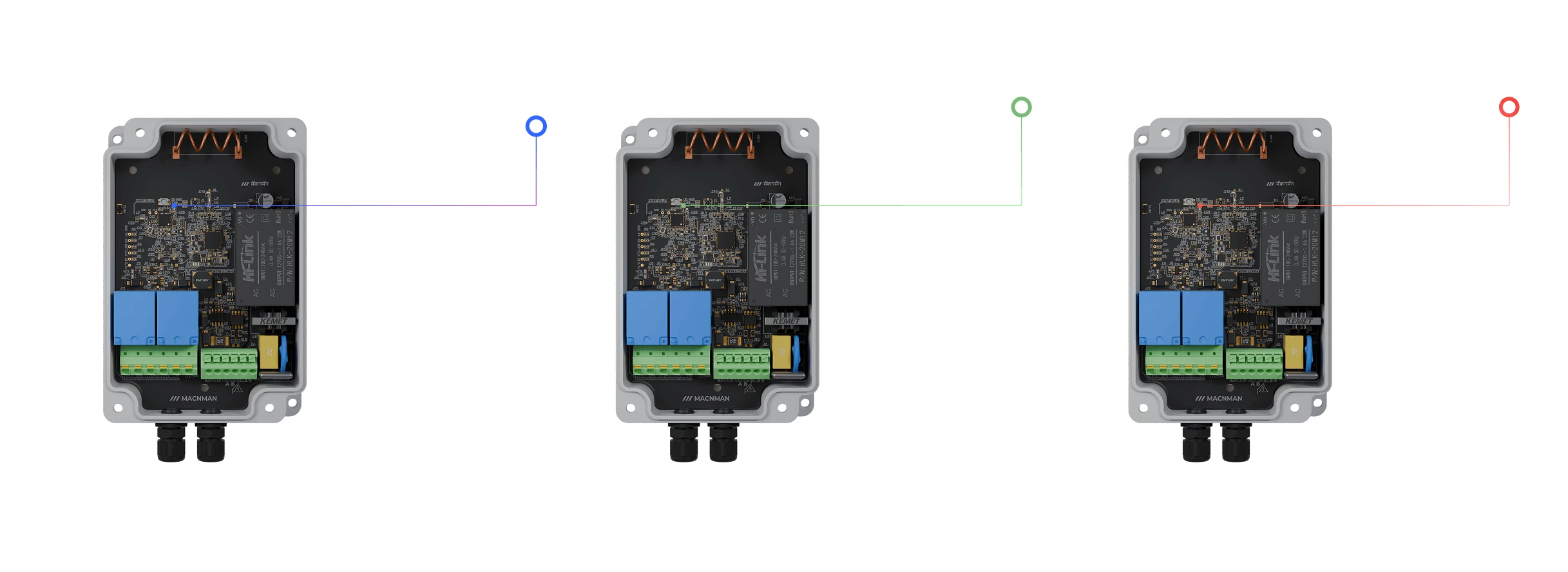
Device is connected with Maya app & Flashing Blue - OTA in progress.
Slow green blink - attempting to connect to the network.
Red blink
Modifying any confirmed parameters of MacSet.